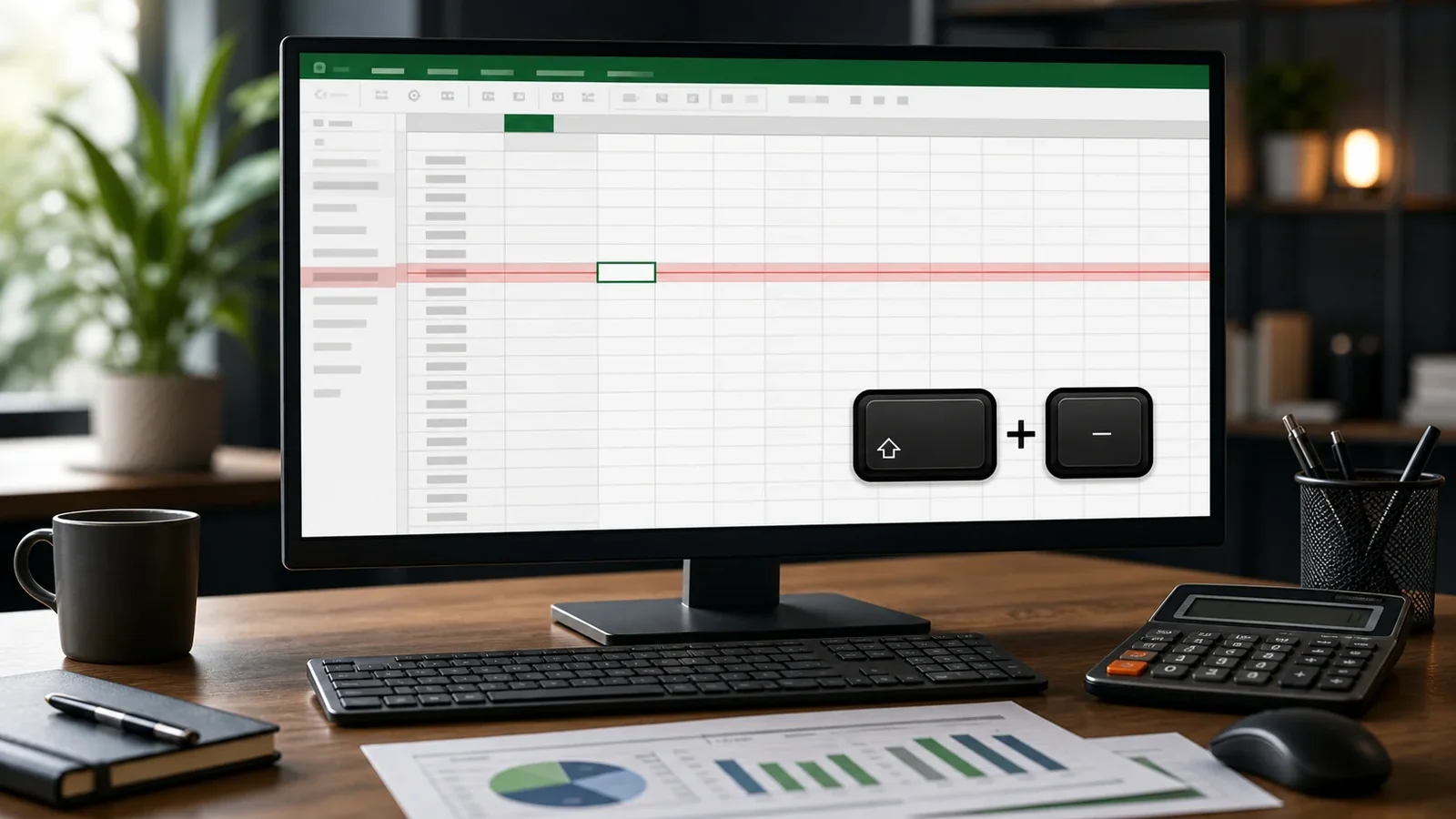
The Excel shortcut
Select the cell or cells you want to format, then press Control plus 5 on Windows. The shortcut toggles strikethrough on and off, and it is by far the quickest way to mark data as outdated or complete.
Using Format Cells
If you prefer menus, select your cells, press Control plus 1 to open Format Cells, go to the Font tab, and tick the Strikethrough box under Effects. Click OK to apply. This route also lets you combine strikethrough with other font effects.
Crossing out part of a cell
To strike only some of the text inside a cell, double click into the cell, select just the characters you want, then apply strikethrough with the shortcut or the dialog. The rest of the cell stays normal.
Common uses
Strikethrough in Excel is handy for checklists, inventory that is sold out, tasks that are done, or figures that have been superseded. It keeps the original visible while signalling that it no longer applies.
Frequently Asked Questions
Control plus 5 on Windows toggles strikethrough for the selected cells.
It is not on the ribbon by default, but you can add it, or use the Format Cells dialog with Control plus 1.
Yes. Select the column header, then apply the shortcut or dialog to strike every cell in it.
Yes. The mobile app may place the option in its formatting menu instead of showing the desktop keyboard shortcut.
It stays when the destination accepts rich-text formatting. For plain-text apps, use Unicode strikethrough so the line travels with the characters.
Use it sparingly, keep the phrase short, and provide the intended meaning in nearby plain text because screen readers may not announce the visual line.