The strikethrough button
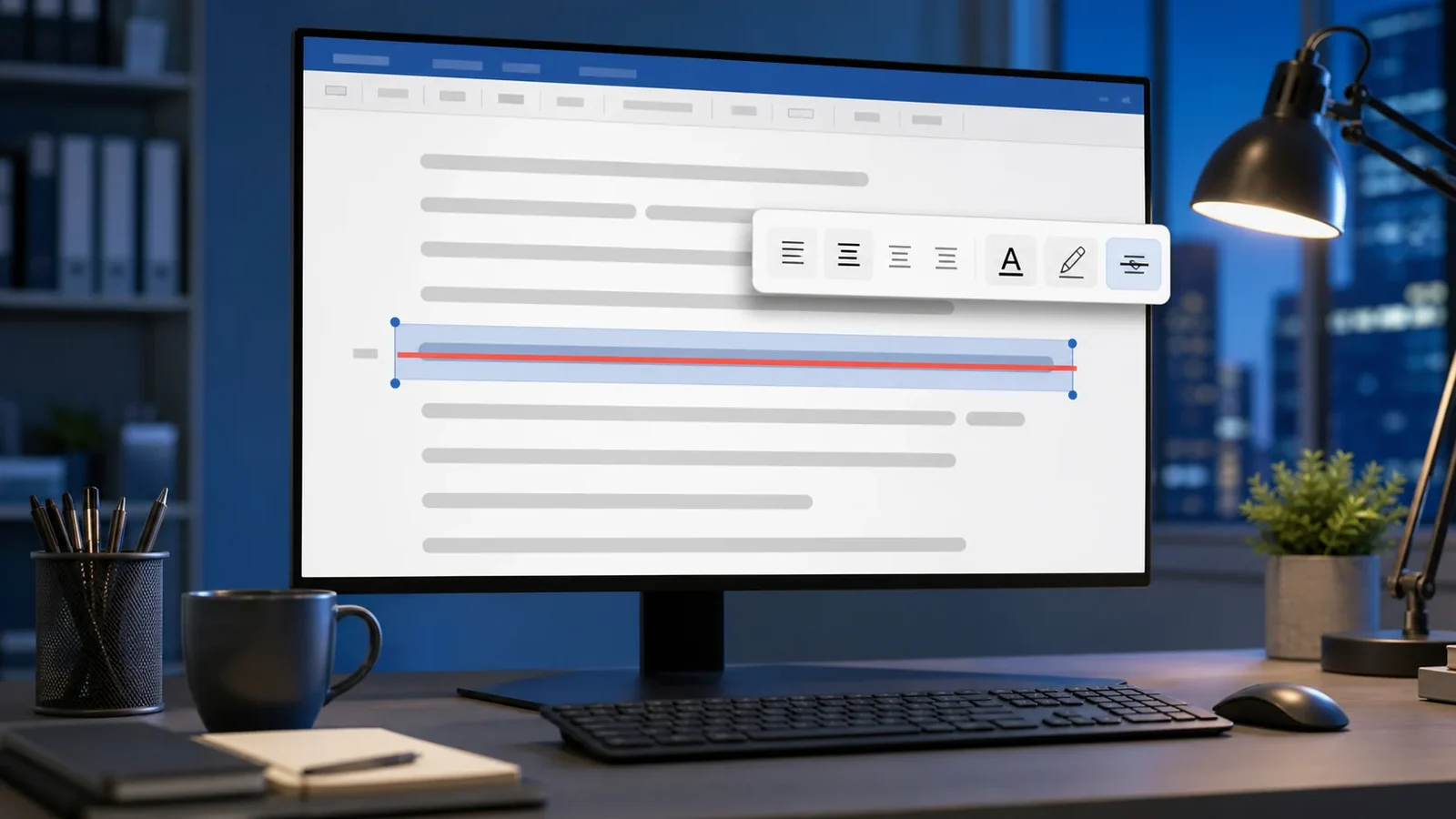
Select the text you want to cross out, then look on the Home tab in the Font group for the button showing letters with a line through them, labelled abc with a strike. Click it once to apply a single line strikethrough, and click again to remove it.
A keyboard shortcut
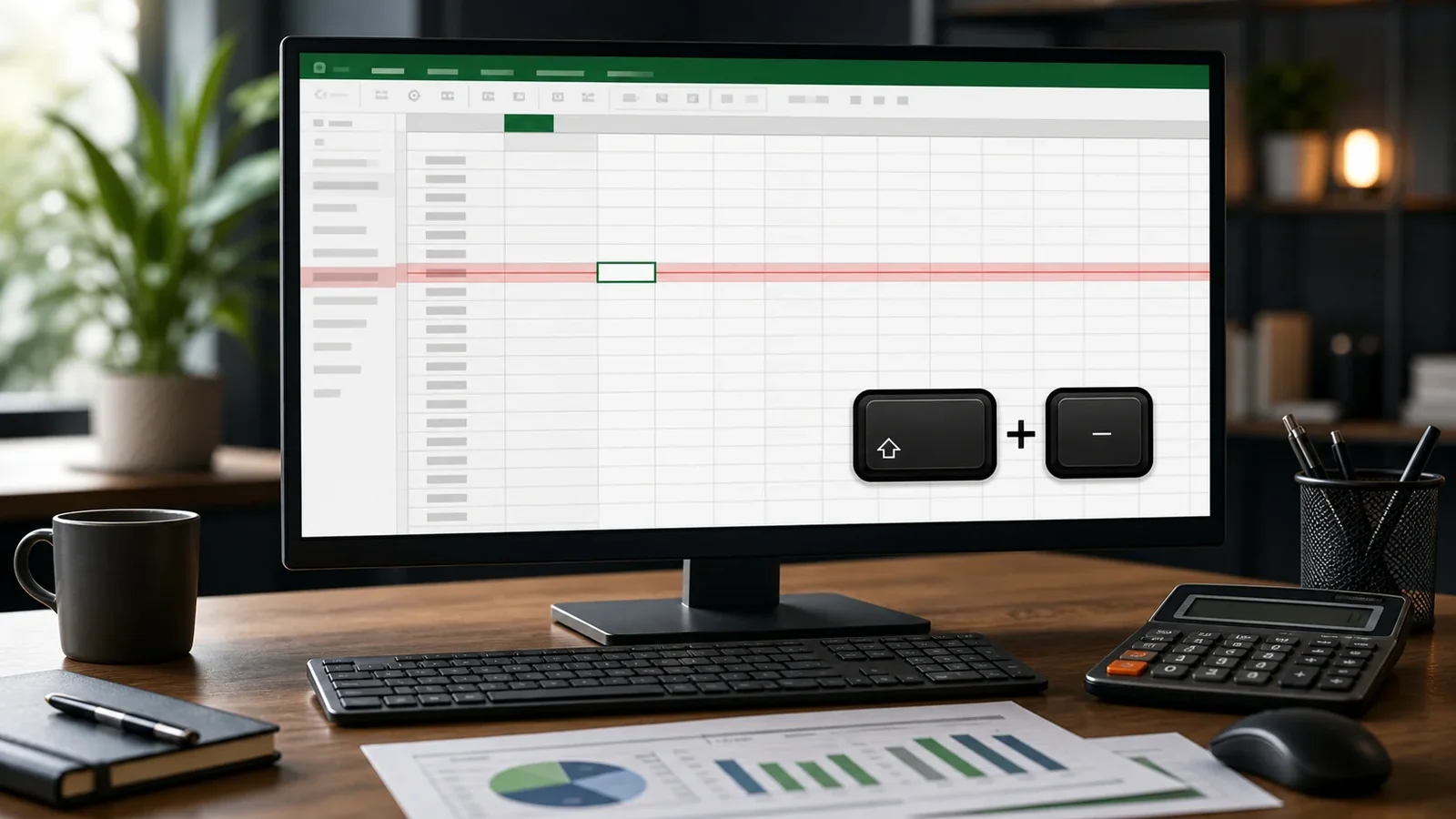
Word does not assign a default shortcut to strikethrough, but you can add one. Go to File, then Options, then Customize Ribbon, then Keyboard Shortcuts, find Strikethrough in the Home tab category, and assign a combination such as Control plus the key you prefer. On some setups Alt plus H then four applies it via the ribbon keys.
Double line strikethrough
For a double line, open the Font dialog by clicking the small arrow in the corner of the Font group, or press Control plus D. In the Effects section, tick Double strikethrough. This is useful when you want the retraction to stand out more strongly.
Word formatting versus Unicode
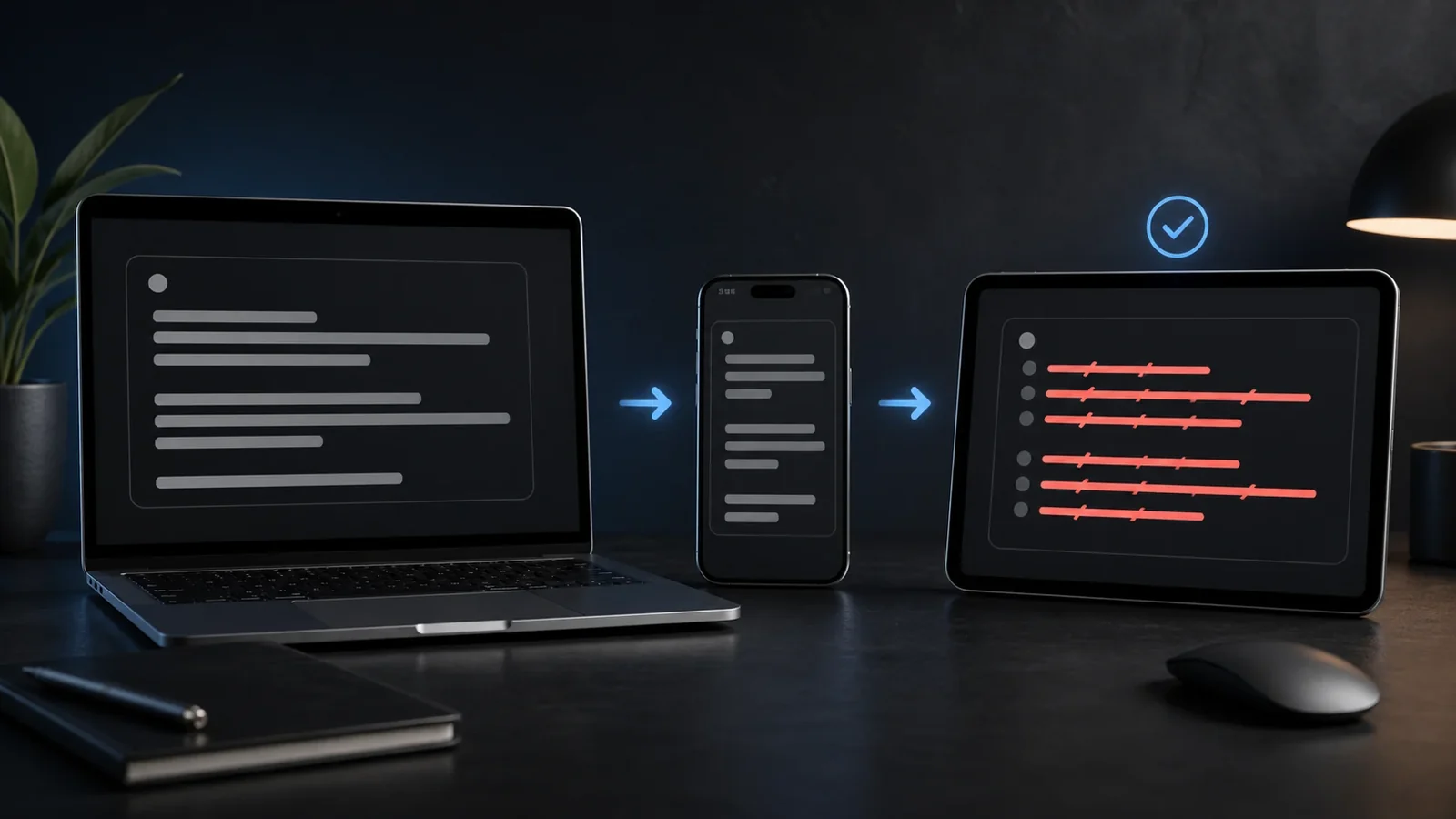
Word strikethrough is document formatting, so it stays only inside Word and compatible editors. If you copy the text into a plain text field it will lose the line. When you need portable crossed out text, generate the Unicode version instead and paste that.
Frequently Asked Questions
There is no default one, but you can assign your own in the keyboard customization settings, or use Alt then H then the strikethrough key on the ribbon.
Open the Font dialog with Control plus D and tick Double strikethrough under Effects.
Word strikethrough is formatting, not part of the characters. Paste into a rich text field to keep it, or use Unicode strikethrough for plain text destinations.
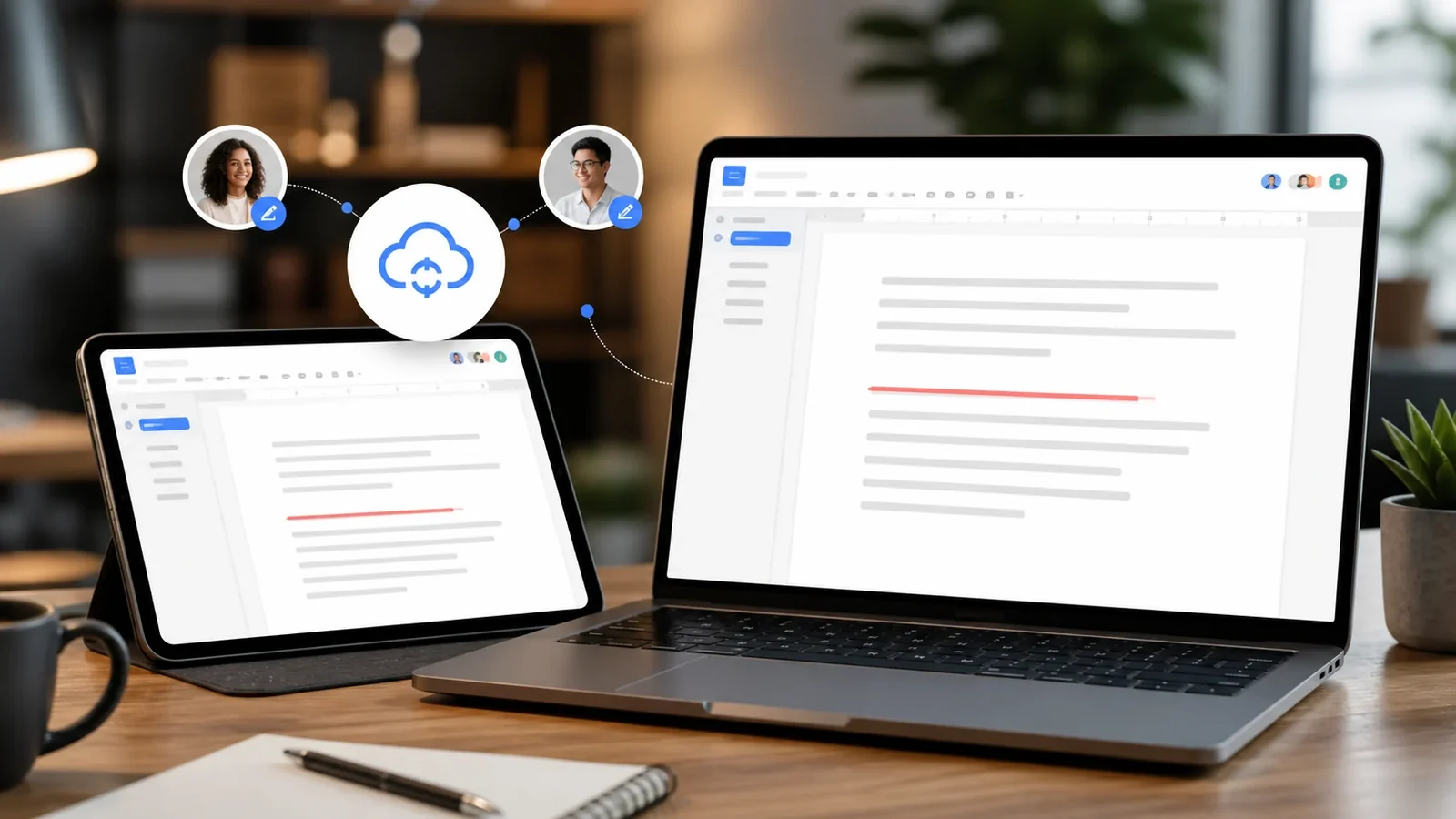
Yes. The mobile app may place the option in its formatting menu instead of showing the desktop keyboard shortcut.
It stays when the destination accepts rich-text formatting. For plain-text apps, use Unicode strikethrough so the line travels with the characters.
Use it sparingly, keep the phrase short, and provide the intended meaning in nearby plain text because screen readers may not announce the visual line.